
Your USB-C cable charges the laptop. Why is the monitor still black?
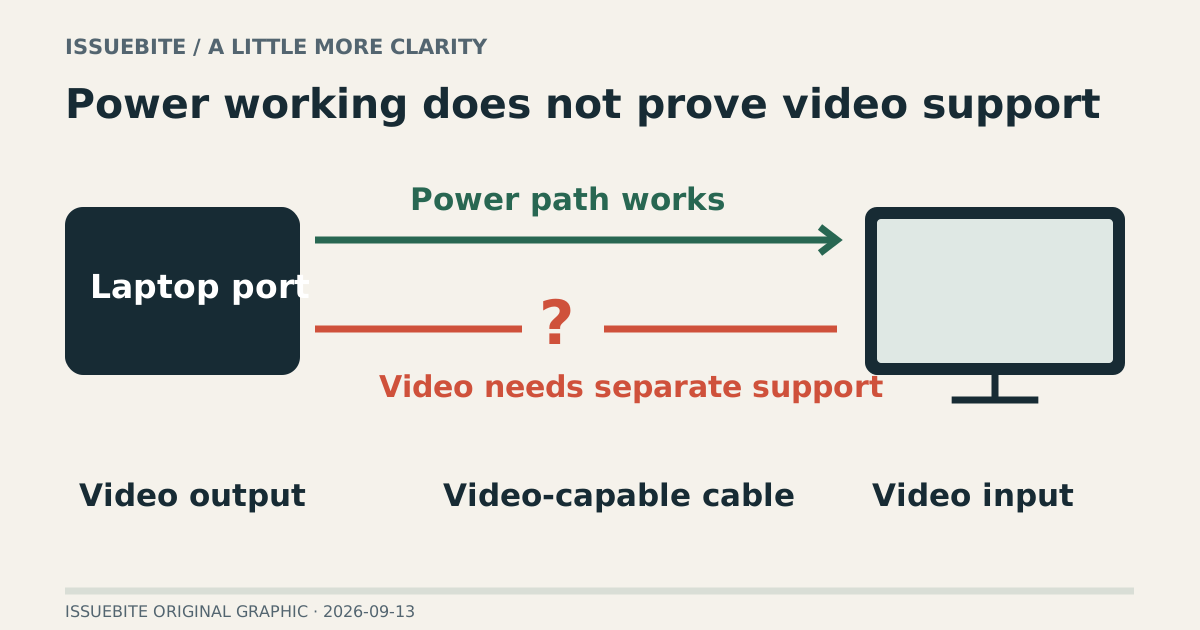
Power arriving is not proof that video can travel. Trace the laptop, cable, and display before spending money on a replacement that may solve the wrong problem.
The charging symbol appears. The cable is firmly connected. The monitor still says “No signal.” The cable becomes the obvious suspect: small, relatively cheap, easy to replace. Unfortunately, being easy to replace is not evidence of guilt.
Find the part you need
Clue one: a connector shape is not a capability
USB-C ports do not all provide the same functions. Power and data support do not establish that a particular port also outputs video. The charging icon proves a power connection. Treating it as a video test can leave you with several perfectly usable charging cables and the same black screen.
Look up the exact laptop model and the specific port, not just the product family. Find documented video output, such as DisplayPort support, or the relevant Thunderbolt capability. Identically shaped ports can have different roles. Microsoft’s troubleshooting guidance likewise checks support across the device, cable, and adapter.
Clue two: the socket on the monitor matters too
Once laptop output is confirmed, inspect the display end. Is that USB-C socket a video input or part of a peripheral hub? The selected input must also match the connection. A monitor waiting on HDMI will not display the USB-C signal just because the cable is attached.
Temporarily removing a dock has a purpose: a working direct connection narrows the investigation to the added path. It does not automatically identify a defective dock, but it makes intermediate compatibility worth examining. Changing everything at once may restore the picture without explaining the cause.
Clue three: read beyond the charging wattage
The largest number on a cable listing is often its charging wattage. Your display problem calls for documented video support at the target resolution and refresh rate. A prominent 100W or 240W figure alone cannot answer that question. A listing without video details may describe a fine charger without establishing the connection you need.
If a picture appears but the desired refresh rate does not, that is a different investigation from no video at all. Try a lower display mode and compare the result, then check the specifications of the complete path. An expensive cable cannot raise a limit imposed by the source, dock, or display.
Now a replacement has a testable job
A replacement is justified when laptop output and monitor input are documented, input selection is correct, and a known video-capable cable works along the same path. If the laptop port provides no video output, buying a more expensive ordinary USB-C cable does not create it. You need a different supported display path.
Write a short purchase requirement: this laptop port, this monitor input, this resolution and refresh rate. A specification that answers that sentence is more useful than a large charging number. It also gives you something concrete to test when the cable arrives.
Reader conversation
Community ↗Questions, first-hand results and different perspectives are welcome. Counts reflect real member activity only.
Moderation
Sources and verification notes
- Microsoft — Fix USB-C problems in Windows ↗Checked 2026-09-13
What this source supports
- Clue one: a connector shape is not a capability
- Clue three: read beyond the charging wattage