
Five minutes before a meeting, Windows cannot find your AirPods
No button on the back does not mean a defective case. Pairing differs by AirPods generation, and a successful connection is only part of getting meeting audio ready.
The meeting link is open and the coffee is ready. You only need to connect your AirPods—except the button shown in the instructions is missing from your case. You and the tutorial are looking at different products. Checking the model now is faster than clicking more menus.
Find the part you need
The pairing control may have changed
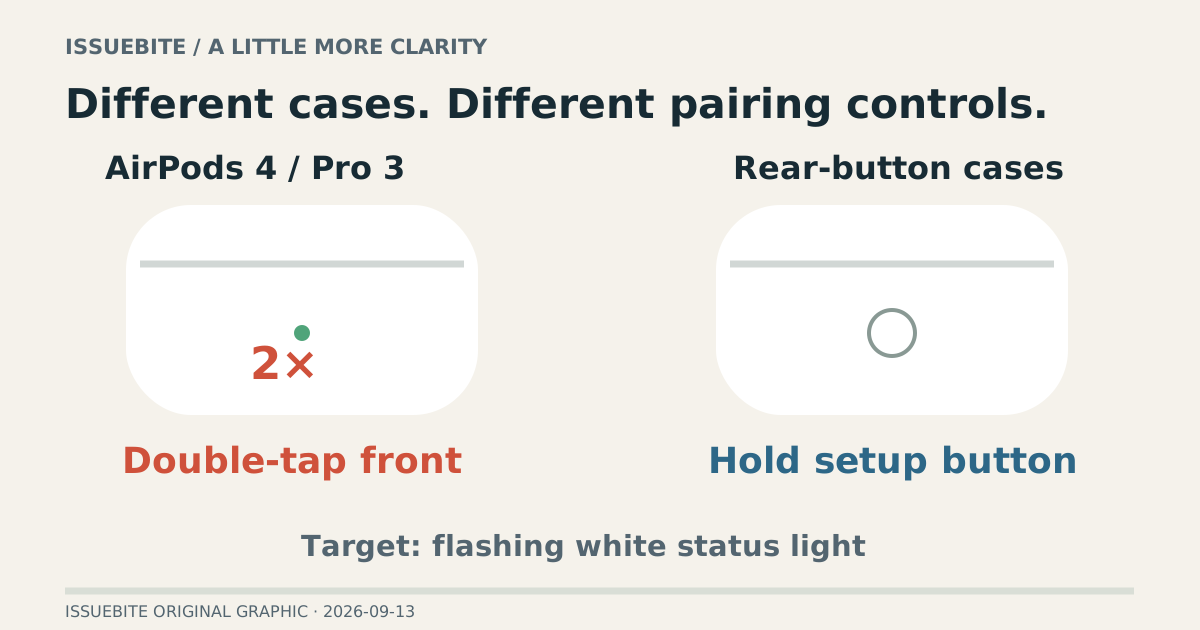
Apple’s current instructions say to open the case and double-tap its front for AirPods 4 and AirPods Pro 3 until the light flashes white. Other button-equipped cases use the rear setup button. AirPods Max has separate controls. One universal picture cannot accurately describe all of them.
The flashing white light tells you to look for the device during pairing. Opening the lid alone is not enough to establish discoverability. Check whether a nearby phone has already taken the connection while Windows is searching.
Once they appear, test the actual audio
Select the AirPods through Windows’ Bluetooth device addition flow. Before closing settings, play a brief sound. “Connected” describes the device relationship; it does not establish which speaker your meeting app has selected.
Choose the speaker and microphone separately in the meeting app and use its test feature. AirPods output with the laptop microphone can be a valid setup. Matching both device names is less important than hearing others clearly and being heard.
When music works and the meeting does not
If music works but the meeting is silent, inspect the application’s output choice first. Switching between phone and PC can leave an earlier selection behind. Restarting the entire pairing procedure may only add work when the audio route is the problem.
If playback changes when microphone use begins, separate the call state and selected input/output combination before diagnosing broken earbuds. Minutes before an important presentation, keep the combination you have verified. Extensive feature comparisons can wait until after the meeting.
Leave a working setup for next time
Once it works, note the model, pairing action, and the app’s input/output choices. Next time you can start from a known setup. If no Bluetooth devices appear at all, turn to Windows radio recognition rather than repeating AirPods instructions. Separating the two problems keeps troubleshooting manageable.
Reader conversation
Community ↗Questions, first-hand results and different perspectives are welcome. Counts reflect real member activity only.
Moderation
Sources and verification notes
- Apple — Set up AirPods with other Bluetooth devices ↗Checked 2026-09-13
What this source supports
- The pairing control may have changed